Can ChatGPT Create Spreadsheets, and How Well Does It Work

A blank spreadsheet can be oddly intimidating. You know what you want to track, calculate, or organise, but the grid gives you no hints. This is exactly where ChatGPT can help.
Yes, ChatGPT can create spreadsheets, but with a few limits. It can build table structures, write formulas, generate sample data, create CSV content, suggest layouts, explain spreadsheet logic, and even write scripts for Excel or Google Sheets. What it usually cannot do on its own is open your spreadsheet app, click around, and maintain a workbook like a human assistant, unless you use a version or add-on connected to those tools.
Used well, it can save a lot of time. Used carelessly, it can give you a neat-looking sheet with hidden mistakes.

What ChatGPT can create in a spreadsheet
ChatGPT is strongest when the job involves structure, logic, or text. If you describe the spreadsheet you need, it can produce a layout that you can copy into Excel, Google Sheets, Numbers, or another spreadsheet tool.
It can help create:
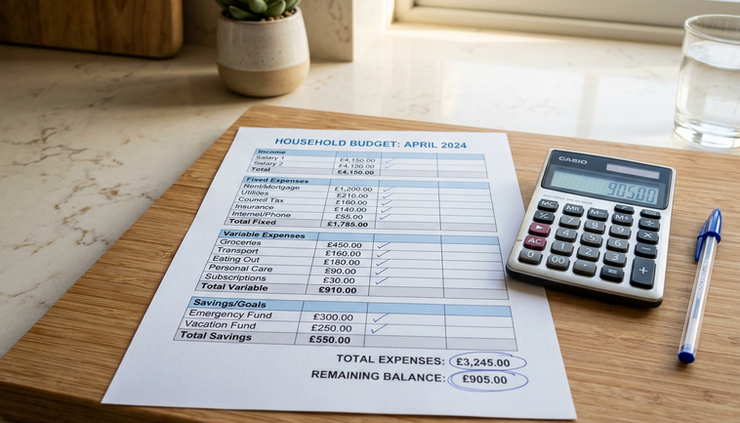
Budget trackers
Categories, monthly columns, totals, remaining balances, and suggested formulas.
Project trackers
Task lists, owners, deadlines, status fields, priority levels, and progress calculations.
Inventory sheets
Item names, SKUs, quantities, reorder levels, and stock value formulas.
Content calendars
Dates, topics, channels, draft status, review notes, and publishing checks.
Timesheets
Start times, end times, breaks, total hours, overtime, and weekly summaries.
CSV files
Plain-text tables that can be pasted into a file and imported into most spreadsheet apps.
For example, you can ask:
Create a Google Sheets budget tracker for a UK household with columns for date, category, description, amount, payment method, and monthly total formulas.
ChatGPT can then return a table layout and formulas such as `SUMIF`, `SUMIFS`, or `QUERY`, depending on what you need. If the first version is too basic, ask it to add categories, charts, validation rules, or a summary tab.
How well does it handle formulas
This is where ChatGPT can be genuinely useful. Many people know what they want a spreadsheet to do, but not which formula will do it. ChatGPT can bridge that gap.
It can write and explain common formulas, including:
Task | Typical formula type |
Add values that match a category | `SUMIF` or `SUMIFS` |
Count completed tasks | `COUNTIF` |
Look up a price or name | `XLOOKUP` or `VLOOKUP` |
Combine text from cells | `TEXTJOIN` or `CONCAT` |
Clean messy text | `TRIM`, `PROPER`, or `SUBSTITUTE` |
Pull data from a date range | `FILTER` |
The quality depends on how clearly you describe the data. A vague request such as “make a formula for totals” may produce something generic. A better prompt gives column names, sheet names, and the expected result.
Try this format:
```text
I am using Google Sheets.
Column A has dates.
Column B has categories.
Column C has amounts.
Write a formula that totals all food spending in March 2026.
```
That kind of prompt gives ChatGPT enough context to produce a useful answer.

Where ChatGPT struggles with spreadsheets
ChatGPT is not a replacement for checking your own data. It can make mistakes, especially when the spreadsheet is complex or the prompt leaves room for guessing.
Common weak spots include:
Complex workbooks with many linked sheets
It may lose track of dependencies or misunderstand how tabs relate to one another.
Regional formula differences
Some spreadsheet settings use commas in formulas, while others use semicolons. Date formats can also cause problems, especially between UK and US formats.
Large data analysis
ChatGPT can explain what to do, but it may not reliably process large datasets unless you use a version with file analysis features.
Silent formula errors
A formula can look right and still return the wrong result if a range, condition, or reference is off.
Assumed column names
If you do not provide exact headings, ChatGPT may invent them.
The safest approach is to treat ChatGPT as a spreadsheet builder and tutor, not an unquestionable source. Ask it to explain formulas in plain English. Then test them with simple sample data where you already know the answer.
The best way to ask ChatGPT for a spreadsheet
The output improves when the request includes the purpose, platform, columns, calculations, and format. Instead of asking, “can ChatGPT create spreadsheets”, give it a proper brief.
A strong prompt looks like this:
```text
Create an Excel spreadsheet for tracking freelance invoices.
Use UK date format.
Include columns for invoice number, client, issue date, due date, amount, VAT, total, paid status, and days overdue.
Add formulas for VAT at 20%, total, and days overdue.
Also suggest a summary section for unpaid invoice totals.
```
This tells ChatGPT what the sheet is for, what columns to include, which calculations matter, and which regional details to follow.
If you want a file-like output, ask for CSV:
```text
Create this as CSV so I can paste it into a .csv file and open it in Excel.
```
CSV is useful because it is plain text. You can copy the output, save it with a `.csv` extension, and open it in Excel or Google Sheets. The downside is that CSV does not preserve charts, formatting, multiple tabs, or some formulas as neatly as a native spreadsheet file.
When it works best and when to use caution
ChatGPT works best for early drafts, templates, formula help, and explaining spreadsheet methods. It is very good at turning a messy idea into a usable structure.
It is especially helpful when you need to:
Start a sheet from scratch
Add formulas you do not know how to write
Convert a table into CSV
Clean up column names
Create example data for testing
Plan charts, summaries, or dashboards
Write Google Apps Script or Excel VBA for simple automation
Use more caution when the spreadsheet affects money, tax, payroll, compliance, or official reporting. ChatGPT can assist with structure and formulas, but a human should check calculations and rules. For financial or tax-related spreadsheets, treat its output as general information, not professional advice.
A useful workflow is simple:
Ask ChatGPT for the first version.
Paste it into your spreadsheet app.
Test the formulas with known values.
Ask ChatGPT to fix any errors.
Keep a clean final version once everything works.

So, should you use ChatGPT for spreadsheets
ChatGPT is a strong helper for spreadsheet creation, especially if you know the outcome you want but not the best layout or formula. It can turn a plain-English request into a working budget tracker, invoice log, timetable, stock list, or CSV file in minutes.
Its main weakness is accuracy in context. The more complex the workbook, the more you need to check its work. Clear prompts, exact column names, UK date formats, and small test examples make a big difference.
The best way to think about it is this: ChatGPT can build the first draft, explain the logic, and help fix problems. You still own the final check. That pairing gives you the speed of AI with the judgement that good spreadsheets still need.


